Storage providers
A storage target is where Arkive keeps a restic repository. Arkive supports seven kinds of target: a local path, SFTP, Backblaze B2, S3-compatible storage, Wasabi, Dropbox and Google Drive. Everything except the local path goes through rclone.
How targets work
- One repository per target. Arkive creates the repository on the first backup to a target. If a repository already exists at that location and opens with your encryption password, Arkive uses it as it is.
- Several targets at once. A job uploads to each of its targets in turn, and each target gets its own snapshot. A run where some targets fail is
partial; a run where every target fails isfailed. Jobs without a target list of their own upload to every enabled target. - Retention per target. After each upload, Arkive applies the retention policy (Settings → General → Retention Policy, default keep 7 daily, 4 weekly and 6 monthly) to that target with
restic forget. A prune every Sunday at 04:00 frees the space. - Health checks. Every 5 minutes Arkive tests each enabled target. When a target becomes unreachable, the dashboard shows it as degraded, the Activity feed records it, and a "Storage target unreachable" notification is sent. When it recovers, that is recorded too.
- Credentials are encrypted. Target settings are stored encrypted with
/config/.keyfileand redacted in API responses. For cloud and SFTP targets, Arkive also writes a section named after the target ID into/config/rclone.conf(file mode 0600), which rclone reads. That section is rewritten at startup and before every upload. - Transient errors are retried. An upload that fails with a network-type error (timeout, connection refused or reset, DNS) is tried up to 3 times in all, waiting 5 and then 10 seconds between attempts. Authentication errors are not retried.
Adding, testing and removing targets
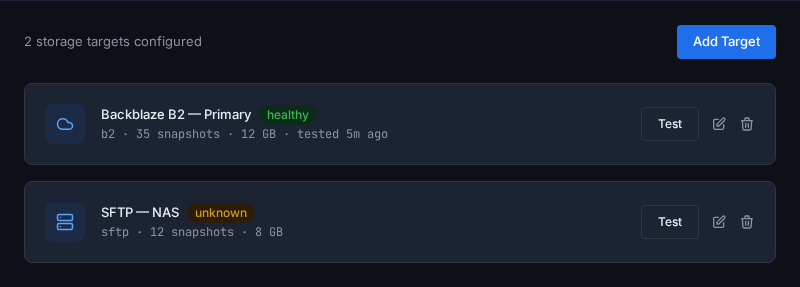
Add a target in the setup wizard or under Settings → Storage Targets → Add Target. Before saving, Arkive trims surrounding whitespace from every value and rejects control characters. Bucket names, regions, key IDs, access keys, usernames, endpoints and client IDs must not contain spaces.
Each target card has:
- Test: for a local path, checks that the folder exists and is writable. For anything else, it lists the top level of the remote with
rclone lsd. The result updates the target's status. - Edit (pencil icon): renames the target.
- Delete: removes the target from Arkive and from every job's target list. A job left with no targets then uploads to every enabled target. The repository and its snapshots stay where they are. Adding a target with the same settings again picks the repository back up.
The web interface can't change a target's credentials after it has been created. Either delete the target and add it again with the same bucket or path, or send the complete new configuration to the API:
curl -X PUT -H "X-API-Key: $ARKIVE_API_KEY" -H "Content-Type: application/json" \
  -d '{"config": {"key_id": "...", "app_key": "...", "bucket": "my-arkive-backups"}}' \
  http://localhost:8200/api/targets/<target-id>
The config you send replaces the stored one, so include every field.
Where each repository lives
| Target type | Repository |
|---|---|
| Local path | <path>/arkive-repo |
| SFTP | rclone:<target-id>:<remote path>/arkive-backups |
| B2, S3, Wasabi | rclone:<target-id>:<bucket>/arkive-backups |
| Dropbox, Google Drive | rclone:<target-id>:arkive-backups |
<target-id> is the rclone remote name Arkive uses, not part of the storage path. The recovery kit lists the exact repository of every target.
Backup runtime limit
Settings → General → Backup Timeout sets the maximum runtime in minutes for each target's backup attempt, including scanning and uploading. The default is 60 minutes. For large initial backups, use a longer limit such as 1440 minutes (24 hours), or 0 for no runtime limit. With no limit, a stalled backup can block later jobs until manually cancelled. The setting applies when the next target backup starts; it does not change an already running process. Each retry gets the configured runtime limit.
The setting is also available as backup_timeout_minutes through the settings API and config export/import.
Limiting upload speed
The bandwidth_limit setting caps uploads, in KiB/s, using restic's --limit-upload. It has no field in the web interface yet. Set it through the API (an empty value removes the limit):
curl -X PUT -H "X-API-Key: $ARKIVE_API_KEY" -H "Content-Type: application/json" \
  -d '{"value": "5000"}' http://localhost:8200/api/settings/bandwidth_limit
Local path
Backs up to a folder on the Unraid server, or to a network share mounted on it.
| Field | Required | Notes |
|---|---|---|
| Local Path | yes | Absolute path inside the container, for example /mnt/user/backups |
- The repository is created at
<path>/arkive-repo. - The path must be mapped from the host. Arkive refuses a path inside the container's own filesystem or on an anonymous Docker volume, because those files are deleted when the container is re-created. The Unraid template maps
/mnt/user/backupsfor this. Use the same path on both sides of the mapping. - Relative paths,
.., and system folders (/etc,/usr,/bin,/sbin,/lib,/boot,/proc,/sys,/dev,/var/run,/root) are rejected. - A network share (SMB or NFS) works if it is mounted on the host and that host path is mapped into the container.
- If a watched directory contains the repository folder, Arkive leaves the repository out of its own snapshots.
- A local target on the same array protects against deleted files and corrupted apps, not against losing the server. Add an off-site target as well. The dashboard warns when every target your jobs upload to is on this server (see No offsite copy), and the setup checklist never counts a local target as offsite.
SFTP
Backs up to any server you can reach over SSH/SFTP.
| Field | Required | Notes |
|---|---|---|
| Host | yes | Hostname or IP address |
| Port | no | Default 22. Only the setup wizard shows this field. The Settings form always uses 22. |
| Username | yes | |
| Password | no | Stored encrypted. In rclone.conf it is obscured with rclone obscure. |
| Remote Path | no | Folder for the repository; see below |
- The remote path is relative to the user's home directory. Arkive removes leading and trailing slashes and rclone treats a path without a leading slash as relative to home. With Remote Path
/backups/arkive, the repository ends up in~/backups/arkive/arkive-backupson the server. If Remote Path is empty, it ends up in~/arkive-backups. - Key-based login is available through the API only: add
key_fileto the target's config with the path of a private key file inside the container, and map that file into the container.
Backblaze B2
| Field | Required | Notes |
|---|---|---|
| Application Key ID | yes | Labelled Key ID in the wizard |
| Application Key | yes | |
| Bucket Name | yes |
Create the bucket and an application key with access to it in the Backblaze console first. The repository is <bucket>/arkive-backups. Arkive uses rclone's b2 backend.
S3-compatible
For Amazon S3, MinIO and other S3-compatible services.
| Field | Required | Notes |
|---|---|---|
| Endpoint URL | yes | For example https://s3.us-east-1.amazonaws.com, or http://192.168.1.100:9000 for a MinIO server on your LAN. In the setup wizard you can leave it blank for Amazon S3 and it is filled in from the region. |
| Access Key | yes | |
| Secret Key | yes | |
| Bucket | yes | |
| Region | no | Passed to rclone when set |
The repository is <bucket>/arkive-backups. Arkive configures rclone's s3 backend with provider = Other. To use a specific rclone provider profile (such as AWS or Minio), add "provider" to the target's config through the API.
Wasabi
| Field | Required | Notes |
|---|---|---|
| Access Key | yes | |
| Secret Key | yes | |
| Bucket | yes | |
| Region | no | Default us-east-1 |
The endpoint is derived from the region: s3.<region>.wasabisys.com. Use the region your bucket is in. The repository is <bucket>/arkive-backups.
Dropbox
| Field | Required | Notes |
|---|---|---|
| OAuth Token (Access Token in Settings) | yes | See below |
The repository is a folder named arkive-backups at the top level of what the token can access.
Arkive accepts two kinds of token:
- A token JSON from rclone (recommended). On any computer with a browser, install rclone and run
rclone authorize "dropbox". Log in, then paste the JSON it prints (the part between the arrows, starting with{). It includes a refresh token, so rclone can keep the connection working. - A bare access token, such as one generated in the Dropbox App Console. Arkive wraps it as a bearer token without a refresh token, so uploads fail once Dropbox expires that token.
Google Drive
| Field | Required | Notes |
|---|---|---|
| Client ID | yes | From an OAuth client you create in Google Cloud Console |
| Client Secret | no | From the same OAuth client |
| OAuth Token | yes | Token JSON from rclone authorize |
- In Google Cloud Console, enable the Google Drive API and create an OAuth client ID.
- On a computer with a browser, run
rclone authorize "drive" "<client_id>" "<client_secret>"and log in. - Paste the client ID, the client secret and the JSON that rclone prints into Arkive.
The repository is the arkive-backups folder in the root of your Drive. To put it under a different folder, add folder_id (the ID of a Drive folder) to the target's config through the API. Arkive passes it to rclone as root_folder_id.